Showing posts with label laptops. Show all posts

Tuesday, January 11, 2011

ViewSonic ViewPad 7

ViewSonic ViewPad 7


Review

the good:

  The ViewSonic ViewPad 7 delivers Android 2.2 on a 7-inch screen, with a powerful processor and rear- and front- facing cameras.
The bad:

The ViewPad 7 is a doppelganger for the Samsung Galaxy Tab and shares many of its shortcomings, including a frustrating keyboard and awkward size. Lacks camera flash. Bring your own memory card.
The bottom line:

The ViewPad 7 offers a solid platform for Android 2.2, but it comes off as an oversize, overpriced smartphone--not a Netbook alternative.
The ViewSonic ViewPad 7 is a 7-inch Android tablet that answers the call for a carrier-agnostic alternative to the Samsung Galaxy Tab. Priced around $450, the ViewPad 7 offers an impressive spec sheet, Android Market access, and all the accoutrements of Android 2.2. It isn't an iPad killer, but its accessible SIM and memory card make it one of the most flexible high-end Android tablets available.
Design
 
The ViewPad 7 is a bit of a brick, with its squared-off edges and paperback dimensions. A few editors remarked on how the silver plastic bezel that wraps around the edge makes it look like a giant iPhone 4. Measuring 4.3 inches tall, 7 inches wide, and .5 inch thick, the ViewPad 7 is slightly more pocketable than the Galaxy Tab, and takes up less than half the space of an iPad.
The screen sports an 800x480 resolution, and is covered with scratch-resistant glass. Like on most Android products, there are four touch-sensitive buttons that run along the screen, providing keys for Home, Menu, Search, and Back. We think ViewSonic's home button looks more like a mushroom cloud than a house, but maybe that says more about us than the product.
A front-facing 0.3-megapixel camera is squeezed into the top left corner of the screen, and is compatible with video chat applications such as Fring. On the back, a 3-megapixel camera sits near the center, but lacks the camera flash found on similar Android tablets, such as the Dell Streak and Galaxy Tab. Still, two cameras are better than none--which is what you'd get on the iPad.
The bottom of the ViewPad 7 includes ports for USB (data/charge) and headphones. A nice headset is included with multiple ear-tip fittings, remote button, and microphone (for voice calls and voice search). Slim speaker grilles are found on the left and right edges, along with a power button on the left that doubles as a sleep/wake control. Across the top you'll find volume buttons and a covered port for a microSD memory card and cellular SIM card.
Overall, the hardware design is solid and well-executed, if a bit forgettable, like many tablets. Unfortunately, once you boot it up, the bloom comes off the rose. A minimum of effort seems to have gone into applying the user interface of the Android 2.2 OS to the ViewPad's 7-inch screen. For example, the dock positions a call button as a primary feature. Granted, the ViewPad's voice-calling feature works well (provided you supply your own SIM card), but it seems an unlikely primary use.
The lack of interface polish really rears its head when you use the onscreen keyboard. There are three keyboard layouts available: QWERTY, 12-key (with letters grouped three per button, as on a feature phone), and CooTek T+. You can switch between keyboard layouts by swiping left and right (a fact not immediately apparent), but the end result is an unnecessary kludge of mobile phone keyboards on a device that really deserves one great QWERTY. Instead, you get a QWERTY that lacks multitouch support and hides common characters such as exclamation marks. With e-mail and messaging being such a big part of why people are drawn to tablets, a half-baked keyboard is a big negative.
Features

The ViewPad 7 offers the full, undiluted Android 2.2 experience, and includes the official Android Market for all the latest and greatest apps. We've seen other Android tablets this same size, but so far only the Galaxy Tab can match the ViewPad's support for Android 2.2 with Android Market.

Thursday, December 2, 2010

Sony shows 3D laptop due in 2011

Sony shows 3D laptop due in 2011


BERLIN--In 2011, Sony plans to join the small set of companies that offers laptops that can display 3D video and games at 1080p resolution.
The company showed off prototypes of a forthcoming Vaio laptop at the IFA electronics show here Wednesday, models that come with a "3D" button and active-shutter glasses to separate what the right and left eyes see.


"3D Vaios will debut next spring," Howard Stringer, Sony's chief executive, said in a press conference touting 3D technology and Sony's commitment to it. Sony also touted other 3D products and content at the show.
The protoypes shown at IFA use "frame-sequential" technology that rapidly cycles the full screen between left-eye and right-eye views, with blank screens in between each to reduce the "crosstalk" that can reduce 3D image quality.
That means the laptop must be able to display video at 240 frames per second to keep up with a 3D rate of 60 frames per second. Sony wouldn't reveal whose graphics chip is used in the system. Sony's also cautioned that the ultimate products may be different from the prototypes it showed.
The 3D Vaio comes with a 3D button to set it for use in 3D mode. Otherwise, it behaves like a normal laptop with 1,920x1080-pixel resolution.

IFA, like electronics shows before it, has become a showcase for 3D technology. Many people are indifferent or even hostile about the technology so far, or at least unwilling to pay the necessary premium, but it's also making steady inroads across the electronics and computing industry.
Sony also announced at IFA that some existing Blu-ray players and PlayStation 3 will be retrofitted with new firmware making them 3D-capable. Among 3D game titles Stringer showed were Tumble, the Sly Trilogy, Mortal Kombat, Virtual Tennis 4, Killzone 3, Super Stardust HD, The Fight, Motor Storm Apocalypse, and MLB baseball.
For those who want a really big screen experience, Sony announced a 3D video projector, the WV-90. It will use the same active-shutter system as Sony's Bravia TVs, meaning that the required glasses will work across the line.
The entire press conference was displayed live on a large screen above the stage. Sony opted to use Real D's 3D technology, which today is found in many movie cinemas. Panasonic, which also tooted its 3D horn at IFA, opted instead to use an array of 54 of its own plasma TV screens. Sony, it should be noted, also sells digital cinema projectors and high-end 3D cameras, including some used to shoot the movie Avatar.
Sony, unlike some of its competitors, is a content company. Here, the company plans to tackle 3D aggressively, too.
Sony's prototype Vaio laptop with 1080p 3D display.
Sony's prototype Vaio laptop with 1080p 3D display is designed to show 3D movies or games.

Sony also plans to launch its own 3D TV channel, Stringer said, with content to include natural history, children's programming, science, and motion pictures, Stringer said. And Sony Pictures plans several 3D movies soon: "Resident Evil Afterlife," "The Green Hornet," another "Spider-Man" sequel, and another "Men in Black" sequel.
"Being shot in 3D doesn't automatically guarantee success," Stringer said. "What counts is how well you tell a story. A hit is a still a hit is still a hit--except in 3D it's a bigger hit."
And then there are the staples. Sony plans to release by the end of 2010 a Blu-ray disk of highlights of the World Cup soccer tournament, Stringer said.

from : cnet


Monday, November 29, 2010

Laptop Tips and Tricks

Laptop Tips 

       
Thermal dissipation - Laptop cooling
Never use your laptop directly on a surface that prevents proper air flow, such as inside the laptop case, on a blanket or pillow. Periodically check that vents are not obstructed. Use a mobile cooling pad if necessary.
Free laptops with mobile broadband
 
Battery charge - Laptop autonomy
Discharge completely your battery at least once per month. 
Security - Laptop tracking
Use the Cyber Angel security solution to track your laptop in case it is stolen. 
Viruses
It is not enough to have an antivirus program installed. It needs to be kept up-to-date, and we recommend to update it at least once per week. 
Windows Updates
Make sure that your computer downloads Window Updates periodically and frequently. This will enhance stability and security of your operating system. 
Carrying
Always use an appropriate carrying bag when traveling, to enhance shock absorption. Whenever you need to ship your laptop through a carrier (SUPS, FedEx, UPS, etc...), always use packaging specifically designed for laptops transit. 
Shocks
Because of they are designed to maximize mobility, laptops are prone to shocks. Always turn your laptop OFF before you move your notebook from a place to another, unless it is well stabilized on a stand that is designed to absorb shocks. 
Humidity
Laptops are very sensitive to humidity. Avoid liquid exposure as much as you can (water, wine, etc...). 
Dust
Laptops are very sensitive to dust. Make sure the laptop is never left on a floor, but that it is always high on a table, desk, stand, etc... Check vents frequently to see if they are not obstructed.  
Preventing Laptop Computer Theft
Laptop computers are easy targets for thieves.  Laptop computers are small, valuable, can be removed quickly, and are easily hidden.  Laptop computers can be worth up to $5000 or more.  The laptop computer can be pawned at a pawnshop for half its value. 
Here are a few tips to reduce the risk of having your laptop stolen. 
  • Don’t leave your laptop out in the open even for a second.
  • Remember extreme temperatures can cause damage to your laptop.
  • Transport your laptop in a nondescript case.
  • Write down the serial number and keep it in a safe place.
  • Always back up your information on disks and store them in a safe place.

Friday, November 5, 2010

Laptop Gaming: Optimize Performance on Portable PCs

Laptop Gaming: Optimize Performance on Portable PCs

Most mainstream laptops have modest CPUs and weak graphics cards. Here's how to tune your games for the best laptop gaming.


Sales of laptop PCs are outpacing those of desktop systems, even as PC gaming has undergone something of a revival in the past couple of years. So it's natural that laptop owners would be playing games on their mobile PCs. Gamers want to have their favorites on the go, whether those titles are casual games such as Plants vs. Zombies, strategy games such Civilization V or Starcraft 2, or first-person shooters like the Call of Duty franchise.
The problem is that mainstream laptops simply aren't built for high-end gaming. Sure, you can buy one of those 10-pound monsters that claim to be "gaming laptops," but they're really laptops in name only. For our purposes here, I'm defining a laptop as a portable that offers a 16-inch or smaller screen and weighs 7 pounds or less--something you might reasonably carry on a business trip or a long vacation.
How do you get robust gaming from current-generation laptops of reasonable size? It's actually pretty straightforward, with a little knowledge and the willingness to give up a few features that you'll never really notice on the small screen.

Laptop Gaming: Understanding the Limitations

First, it's worth exploring the limitations you need to live with. As it turns out, those limitations seem more severe than they really are.
Processor, Memory, and Storage
Most small and midsize laptops ship with dual-core CPUs. A few models have quad-core processors, but those don't have the impact on gaming that you might suspect. For one thing, mobile quad-core processors often run at clock speeds substantially lower than their dual-core cousins. Take Intel's Core i7 820QM: Intel advertises it as a 1.73GHz CPU with a turbo-boost speed of 3.06GHz. What that actually means is that one of the four cores may run as fast as 3.06GHz when needed--but the other cores are relatively inactive.
On the other hand, the Core i5 540M is a dual-core CPU that runs at 2.53GHz--but also supports a turbo-boost of 3.06GHz. Performance under many games will be very similar for these two CPUs, but you'll pay a premium for the 820QM. Those extra cores become useful if you're heavily into photo or video editing, but they don't add much to the performance of many games, particularly at the lower clock speed.
Memory is another factor. You really want 4GB of RAM, especially if you're running the 64-bit version of Windows 7 or Windows Vista. For games, however, more memory isn't all that useful beyond 4GB.
Whether you have a dual-core CPU or a quad-core one, the processor isn't the biggest player in holding back gaming performance--the graphics component is.
Graphics and Audio Hardware
Perhaps the biggest roadblocks to robust gaming on a laptop are limitations in graphics hardware. Integrated graphics--3D hardware built into either the chipset or the processor itself--is particularly limiting.
Even if your laptop has "discrete graphics"--a separate chip built into the system just for accelerating 3D graphics and video--it's likely to be a cut-down version of what's available for desktop PCs. The number of computational units (often called shader units or shader cores) may be smaller than on even midrange desktop graphics cards. Similarly, clock speeds and memory bandwidth may be lower. So while these chips can technically support the latest and greatest graphical features of modern games, in practice the performance trade-offs are too great.
What users often don't realize is that giving up a little graphics eye candy can help game performance improve substantially. Remember, you're playing on a small screen--as small as 11 or 13 inches in some cases. Even a 15- or 16-inch laptop screen isn't large when compared with affordable 22- to 27-inch desktop displays. If you dial back some of the intense graphics settings on smaller laptop LCDs, you may not notice much difference.
Audio hardware isn't as limiting a factor as graphics hardware is, but the tiny speakers built into most laptops won't generate the powerful sound effects that many games can produce. If you want immersive game audio, what you should really get is a good set of in-ear or over-the-ear headphones.
.
Point and Shoot!
Touchpads and eraserheads have always been problematic as pointing devices, but they're particularly bad for gaming. Some newer laptops come equipped with touchscreens, but for the most part PC games don't support touch. You'll find a few exceptions: The excellent real-time strategy game R.U.S.E. works great with a multitouch screen. With most modern games, though, you'll want a mouse. For mobility, it's best to leave the big gaming mice at home; a cordless mouse designed for laptops will work fine, as long as it has a scrollwheel button and a couple of side buttons.
Although carrying a small, cordless mouse isn't too onerous, lugging around a keyboard is usually out of the question. While the keyboards built into many laptops are somewhat cramped, many games often allow you to reconfigure keyboard controls. Reconfiguring allows you to use keys that may be more suitable: If the arrow keys are too tiny, for instance, reconfigure their action to the PgDn key or a function key.

Rules of Thumb: Hardware Driver Configuration

Now that you have a basic understanding of the hardware limitations, let's talk configuration. First, you need to configure your hardware. You do that through driver configuration--in most cases, graphics drivers. The discussion below applies to AMD, nVidia, and Intel driver control panels. In truth, you can make only limited changes to driver controls, and those tweaks will have only small effects on performance; most of the real gains will be in game configuration. But every little bit helps.
The various graphics drivers have similar options; some have more than others, but you can generally ignore the more esoteric ones.
One key item is vsync. This feature is a throwback to the era of CRT monitors, when games would try to synchronize the display of a frame of animation to coincide with the refresh rate of the monitor. Most LCDs, however, set the refresh rate to 60Hz--if vsync is on, your game will never run faster than 60 frames per second.
When you disable vsync, the game can paint the frames as fast as they're rendered. The downside: If the frame rate is lower than the vertical refresh rate, you may see visible tearing in the image. But the trade-off may be worthwhile to get an acceptable frame rate.
Intel Graphics and Media Control Panel
The other setting that can have some impact on performance is the texture quality setting. Lowering this setting may affect overall image quality--but if you have a particularly small display, it may not matter. Texture quality will likely affect performance only by a slim margin.

Disabling Crapware

It's amazing how much performance-sucking junk comes preloaded into retail laptops. Going through your notebook and uninstalling anything that may affect performance might be worth your time. Some apps, such as OS X-like menu bars, don't really eat into performance, but they do take up memory. Look through your system tray and use the system configuration utility to minimize the number of apps your laptop runs in the background.
You can launch the system configuration utility by clicking Start, Run and typing msconfig in the field. It's best to leave all the Microsoft apps running, as well as any antivirus programs. But try disabling some of the others, such as iTunes, Adobe updaters, and so on.

Rules of Thumb: Game Settings

The games themselves are where you have the most control over both graphics quality and performance. Here are some key settings that are worth considering when you're playing on a laptop.
  • If the game gives you the option of choosing which version of DirectX to use, go for the lower-numbered version. Performance will almost certainly be better, and image quality won't substantially degrade.
  • Look for a global setting in the game's graphics configuration screen. It may allow you to choose settings such as 'optimal', 'medium', or 'low'. Experiment with different global settings to see if one will work best for your laptop.
  • Some games enable antialiasing by default, no matter what hardware the game detects. On laptops it's a good idea to turn off antialiasing, as it's a tremendous graphics-performance hog.
  • Shadows are another significant drain on performance, particularly at higher settings. Turning shadow settings off will make the game look less realistic, but you can typically get by with setting this feature to 'low' without much of a performance hit. On lower-end hardware, or on systems with integrated graphics, disabling shadows entirely may be best.
  • If you have the option of setting the view distance (how far into the virtual world you can see objects), reduce it to a visually acceptable level. Push it too low, and objects may pop out in a jarring way.
  • Set postprocessing effects to a minimum. The game may have no specific setting for postprocessing, however; instead, you may see features such as depth-of-field and motion blur. If the result looks similar to a film effect, it's probably postprocessing. Specialized water and flame effects may also fall under this category.
  • Try starting with lower resolutions, such as 1280 by 720, and then pushing up the resolution gradually. On smaller LCDs, though, it's better to turn up features first, and then the resolution.
As an example, here's a look at Sid Meier's Civilization V, the latest in the long-running Civilization franchise. It's a turn-based game, which means that you can play at your own pace. By the same token, it's a demanding game graphically, taking advantage of the latest DirectX 11 graphics technology built into Windows 7.
This game gives you two options: DirectX 9 and DirectX 10 & 11. If you want to maximize performance, choose the DirectX 9 option and then set most of the in-game settings to low, as shown below. You still get fairly attractive graphics while playing the game.

This is a good general rule of thumb with any game: If the title gives you the option of dropping down to an older version of DirectX, do it. You probably won't notice any image-quality difference unless you look very closely, and performance will be better--in some games, the difference is 50 percent or more.

Choose Your Games Wisely: Picks for Different Laptops

What laptop hardware you carry around may be the deciding factor as to what games you play. A netbook won't be able to handle the heavy demands of a modern first-person shooter, but it might be quite capable of playing casual or older titles.
A 6-pound thin-and-light laptop with modest discrete graphics, on the other hand, may prove surprisingly capable. Here are a few games that would be playable at low-to-medium settings on each class of system.
Netbook Gaming
We're definitely in low-end territory here. Casual games such as Peggle, Puzzle Quest, and Plants vs. Zombies are playable on netbooks. The latter two titles even have strong appeal to more serious gamers. You'll also find certain classes of games that attract hard-core gamers but have low-quality graphics or even old-school ASCII text, making them very playable on laptops; examples of these games include Dwarf Fortress and Minecraft.
Thin-and-Light, Integrated Graphics
Your game repertoire can expand a bit here, even if you have fairly entry-level Intel integrated graphics hardware such as that built into Core i5 processors. Most strategy games are playable, although you'll have to tweak the settings somewhat in certain more-demanding real-time strategy games. Some shooters, like those in the Call of Duty line and Valve titles such as Team Fortress 2, are quite playable if you're willing to dial down the settings to medium-low or low quality and set your resolution to something more modest, along the lines of 1280 by 720.
Thin-and-Light, Discrete Graphics
Now the choices expand even more. A few games, such as the very demanding Metro 2033 first-person shooter, may be only marginally playable, even at lower settings. But most games are playable if you're willing to sacrifice resolution and graphics settings.
The problem here is the variance in products. Thin-and-light laptops can have everything from the fairly high-end AMD Radeon HD 5850 Mobile or nVidia GeForce GT 445M to the entry-level nVidia GeForce GT 325M or AMD Radeon HD 5450 Mobile.

Case Studies: Looking at Two Laptops

Now it's time to turn to a couple of real-world examples. The first--the Toshiba Satellite T235, which ships with a 1.5GHz AMD Turion II Neo CPU--is an ultraportable, which offers better performance than a netbook, but not by a wide margin. The second is a mainstream thin-and-light laptop, the Asus N82j, a 14-inch unit with a Core i5 540M and a discrete nVidia GeForce GT 335M GPU.
What applies to the Toshiba is also likely to apply to netbooks, except that the Toshiba's integrated AMD graphics hardware offers higher performance for 3D.
Toshiba Satellite T235
No matter what I tried, I couldn't get decent first-person shooter performance out of the T235. Even relatively forgiving titles such as Portal and Team Fortress 2 were only marginally playable.
Civilization V ran fine in DirectX 9 mode, with most graphics features turned down. Animations were a little ragged; since this game is turn-based, that isn't a big deal. However, you should definitely keep map sizes smaller--a large or huge map with many AI players means long waits as turns are executing.
Games like Puzzle Quest ran well. The oddly fun side-scrolling shooter Blade Kitten also offered reasonable performance.
Asus N82j
The N82j is one of a new breed of laptops that support nVidia's Optimus technology. The system runs with integrated Intel graphics in normal use--office apps and Web surfing, for instance--but when you launch a game, the discrete nVidia GeForce GT 335M graphics kick in.
Even so, the GT 335M is a midrange mobile 3D part, which would be entry-level on a desktop system. So I had to make some sacrifices. Although I had to set the combat flight simulator Tom Clancy's HAWX to DX9 mode with mostly low settings, the game ran above 30 frames per second, which is acceptable for this class of game.
Far Cry 2 ran at about 30 fps in DX9 mode, too, but with most graphics features set to 'low' and the resolution at 1280 by 720. Civilization V performance, even on a large game, was reasonably good, though the game ran with DirectX 9 graphics at medium settings.

Game On

If you're mostly a mobile PC user, as are an increasing number of people, you can still get your gaming fix. All you need is a little knowledge, a desire to experiment, and a willingness to run your games at more modest graphics settings. Not every game will run on every laptop well, but you should be able to find excellent titles that will tickle your gaming fancy, whatever your hardware budget.
good laptops
 Acer Aspire AS5251-1805 15.6-Inch Laptop (Black)
Toshiba Satellite L645D-S4036 LED TruBrite 14-Inch Laptop (Black)
Dell D600 Laptop 1.6ghz 40gb DVD/CDRW B Grade Includes Genuine XP Professional restore cd!
Dell Latitude D600 14.1-Inch Laptop - 512MB RAM, 30GB Hard Drive
Toshiba Satellite C655D-S5043 TruBrite 15.6-Inch Laptop (Black)

Thursday, November 4, 2010

11 Uses for an Old PC

Just because you bought a new PC doesn't mean you have to throw away the old one. Here's how to make the most of an older computer.

By Loyd Case, PCWorld Oct 29, 2010 3:00 am
You've finally gone and bought a new PC. It has a boatload of memory, lots of cores, and a fast, modern graphics card. But now your old computer sits in a corner, and although you know it's just a machine, it seems to be sulking like a puppy that missed its morning biscuit. It's weird, but you feel guilty with the whole idea of throwing it out.
After all, it's perfectly functional. When you first bought it, it was near state-of-the-art. If your new PC replaces one that's really on its last legs, by all means, take it to a reputable electronics recycler. But it's amazing how many users ditch perfectly good machines when they pick up a shiny new system.
You can do plenty of things with an old PC besides sending it to the recycling heap. Let's take a look at a few ways you might put that old system to work.

1. Convert It Into a NAS or Home Server

If you're running a home network and have multiple users--you, your spouse, your kids--reuse as network-attached storage or even as an actual server may be just the ticket for an old system.
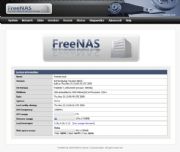
Click to zoom.You can turn your old PC into a network-attached storage device with FreeNAS.However, it's not just a matter of plugging an old PC into a network connection and starting it up. Most desktop systems aren't configured to be effective servers or storage systems. For one thing, they probably use too much power. You'll want to set BIOS power management to run cooling fans in quiet mode, if that option exists. You'll also need to set up the operating system so that it doesn't shut down at inconvenient times, yet run in a low power state when it's not being actively used.
Bear in mind that you'll probably want to run your server "headless" (that is, without a monitor), and sans keyboard and mouse as well. While you'll need a display and input devices for the initial setup, make sure the system will work properly without them. Having a scheduled reboot hang because the system halted during startup (it couldn't find a keyboard, perhaps) is annoying, to say the least.
Also, the operating system is likely not well suited for storage applications, particularly for multiple users. While Windows XP, Vista, or Windows 7 can function well as a storage repository for a couple of users, you'll want to take the time to create user accounts for each person who might need access. In some cases, you may want to set storage quotas.
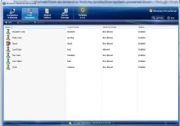
Click to zoom.You could also use Windows Home Server, but it'll cost over $100.A better solution would be to install a proper network operating system. One choice is Windows Home Server. However, that will cost you somewhat north of $100, and WHS may prefer newer hardware. An alternative is FreeNAS.
FreeNAS is open-source software designed to turn a PC into a network-attached storage device. It's based on FreeBSD, a UNIX variant. If you're uncertain whether you want to commit to an unfamiliar OS, FreeNAS can be downloaded as a LiveCD version. This is an ISO file which, when burned to a CD, will boot off an optical drive and run completely from memory. You can keep your old OS on the hard drive until you determine if FreeNAS is suited to your needs.

2. Donate It to a Local School

If your PC isn't too archaic, consider donating it to a local school or daycare center. Worst case, it could go to the high school computer lab (most schools have one) and be used as a test bed, to take apart and reassemble. Alternatively, the school district computer services group might use it for parts, though it's been my experience that many school district IT groups tend to shy away from used gear, given the unknown pedigree or wear of older hardware.
If you donate it to a daycare or child development center, consider buying some low-cost educational software packages and preinstalling them before handing the system over. Also, as with selling a system, you'll want to remove all software that you've reinstalled on your new PC. And make sure to include all license information for the software you're preinstalling on the old system.

3. Turn It Into an Experimental Box

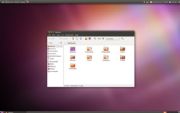
Click to zoom.Try out Ubuntu, the most popular Linux distro. (Image courtesy of Wikimedia Commons.)You've heard about this Linux thing, and maybe you'd like to give it a whirl. But the thought of trying to create a dual-boot system on your primary PC leaves you a little green around the gills. Now you can experiment to your heart's content on your old box.
Check out Ubuntu, the sexy Linux distro that geeks love to, well, love. The neat thing about Linux is all the built-in support for older hardware, so installation is usually easy. In fact, installing Ubuntu is sometimes simpler than installing Windows. And there's a wealth of free software for Linux just waiting to be tried out.

If you think you've got the tech savvy and a bent for tinkering, you might try creating a Hackintosh--a PC that can run MacOS X. It can be done, but it does take a fair amount of effort. The main hackintosh site is a good place to start, but expect a long and somewhat bumpy trip. Oh, and you'll have to pony up a few bucks for a legal copy of MacOS X.
In addition, a number of true UNIX-based operating systems are available, ranging from FreeBSD or PC-BSD (based on the Berkeley UNIX version) to OpenSolaris, based on the Sun Microsystems version of UNIX.

4. Give It to a Relative

I do this all the time. My brother-in-law has modest computing needs. So I'll often just hand over one of my two-year old PCs, though I'll usually drop in a midrange or entry-level graphics card.
I don't generally recommend doing this with your kids, though--at least, not if your kids are like mine. They often need as much or more PC horsepower than I use on a regular basis (outside of gaming and photography, anyway). My older daughter is a dedicated photographer, and makes heavy use of Photoshop, while my younger daughter has become a pretty hard-core gamer (she recently asked for a copy of Borderlands for her birthday).
Giving a system to family members can be fraught with peril, though. That's because you are now the go-to person for tech support. So you've been warned: Give a PC to a friend or relative, and you're now on call. Don't worry, though--we've got you covered in "How to Fix Your Family's PC Problems."
One thing you'll definitely want to do is completely erase the hard drive and reinstall the OS from scratch. If it's an off-the-shelf system from a major manufacturer, restoring it to its original condition from the restore partition or restore disc accomplishes the same thing.

5. Dedicate It to Distributed Computing

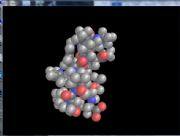
Click to zoom.Use your PC to fold some proteins with Folding@Home.Want to do a little good for humanity? How about dedicating your old PC to one of the various public distributed computing projects?
The best known is probably Folding@Home. Folding@Home uses computing resources from all over the world to help study protein folding, an essential element to understanding how many diseases operate. If your old PC has a fairly new graphics card, that hardware can often pitch in as well, and offer up even more computing resources. Other distributed computing ventures include:

6. Use It as a Dedicated Game Server

Click to zoom.Set your PC up as a dedicated server for classics like Freelancer.Do you have a favorite multiplayer game? If so, check and see if it's a game where you can host a server on a local computer--you might consider making your old system a dedicated game server. Most multiplayer games capable of playing online often support dedicated servers. I ran a Civilization 4 "pitboss" server for a few months, and Desktops Editor Nate Ralph is in the process of setting up a PCWorld Minecraft server.
Click to zoom.Team Fortress 2 also supports dedicated servers.The neat thing about many of these dedicated game servers is how little system horsepower they actually need. I ran a Freelancer server on an old Pentium 4 laptop system, at times supporting eight simultaneous users, with no performance issues.

7. Use It for Old-School Gaming

Related to the idea of using an older system as a dedicated game server, consider repurposing that box for old school gaming. You can go as nuts as you want. For example, install Windows 98, so you can run those older Windows 95 and DOS games, if you have a bunch around. Note that this isn't as necessary as it used to be. Online services like Steam and Impulse are offering older games that have been rewritten to work under newer operating systems, and DOSBox lets you emulate a legacy DOS environment to get your classic gaming fix.
Perhaps the most complete site for older PC games is Good Old Games. GoG, as it's often called, offers a large number of older titles, all of which work fine under newer operating systems. So if you've always wanted to go back and play Planescape: Torment , now is your chance.
Click to zoom.Relive the arcade game's glory days with MAME. Don't worry about running out of quarters.If you want to go really old school, install MAME (multiple arcade machine emulator) software. That will allow you to play arcade games and games written for older game consoles, provided you have access to the ROMs and other related files to run the games. MAME can become a gigantic time sink (albeit a very fun one), so you've been warned!

8. Make It a Secondary Computing Server

If you're a content creator using a title like 3dsmax, Adobe After Effects or Sony Vegas, having another PC to help with distributed rendering chores can greatly speed up final renders for complex projects.
Each application handles distributed rendering a little differently, so you'll need to consult your documentation. But typically, you'll install a lightweight application on the secondary rendering system, which will take data and commands from the primary system and then return results when done. The main application on your production system, or a separate manger app, manages the rendering across multiple networked systems.

9. Set It Up as a Light-Duty 'Living Room' PC

We have a small PC in our living room that's often used for quick Web surfing and to check e-mail. Occasionally, our kids will come down and do homework on the communal PC when they get tired of being cooped up in their rooms. This can work particularly well if you have networked storage somewhere in the house, so people can get to their files whether they're on a personal system or a communal one.
If you do have this type of communal PC, your first inclination might be to create separate accounts for each person. I've found this isn't really necessary. Since it's communal, no one really keeps private information on it.
The flip side is that you'll want security software that's as bullet-proof as possible. Since you have multiple users on one system, eventually someone, sometime, will hit a Web site that may attempt to download a Trojan horse or other malware.

10. Salvage It!

If you have a do-it-yourself bent and build your own systems, you may reduce the cost of your new system by salvaging parts from the old one. Good candidates for salvage include the case (if it's not a proprietary, prebuilt system), the optical drive, the power supply, and, sometimes, the memory modules.
Depending on how much you actually reuse, the distinction between new system and one that's simply been upgraded is a hazy one. If you replace the motherboard, CPU, memory, and primary hard drive, but keep the case, power supply, optical drive, and graphics card, is that a new system, or one that's been upgraded?
That will still leave you with a few old parts. Which brings us to our final point.

11. Sell It

Somewhere on eBay, someone is looking for a computer. They may not be able to afford a new PC, or are looking for a second PC for the family. Your old PC, at the right price, may be just what they need. Assuming it all goes smoothly, everyone wins: You unload your old hardware, which finds a good home with a new user who can appreciate it.
However, it's not as simple as selling it at a garage sale. For one thing, scammers cruise both Craigslist and eBay, looking to convince unwary buyers to take deposits that mysteriously vanish when you try to cash them. Always be suspicious of anyone who wants to use Western Union and has an overseas address.
My general rule of thumb is to stick to selling locally (if it's Craigslist) and only in the United States, if its eBay (since I live in the U.S.). Also, using an escrow site like Paypal (required for eBay anyway), gives you a sense of security, though clever scammers still manage to take advantage of Paypal. Read "How To Sell Your PC and Other Gadgets" for more tips on selling your old tech gear.
As we've seen, an old computer can have many uses, particularly if it's still in good working condition. And not all uses for a PC require quad-core systems with high-end graphics. So if that old system is sitting in a closet somewhere, dig it out and put it to use. Who knows? It might be your PC that identifies the signal that's the first sign of intelligent life outside our planet.


Thursday, October 14, 2010

Dell Inspiron 15 (1545) Laptop


  Great laptop for everyday use
Introducing the new Inspiron™ 15, a 15.6" laptop that gives you the everyday features you need, all at a great value.
  • Up to Intel® Core™2 Duo processors
  • View your entertainment on the go with the HD display
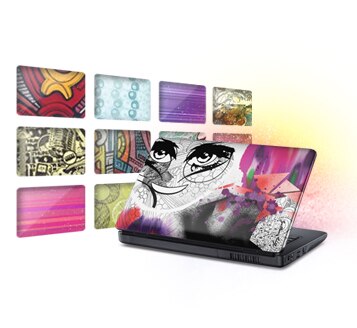
  • Personalize with a choice of six vibrant colors OR choose from over 200+ artist designs with Design Studio.
·         The art of inspiration with Dell Inspiron laptops

·         Six vibrant colors and over 200 unique images to choose from on the outside, and a modern black palmrest on the inside adds that perfect touch. Available in Matte Black Paint, Cherry Red, Promise Pink, Arctic Silver, Ice Blue or Pacific Blue. And with every purchase of a Promise Pink Inspiron 15 laptop, Dell will donate $5.00 to Susan G. Komen for the Cure® , the world’s largest breast cancer organization.

·         Inner attributes
Enjoy viewing photos and watching widescreen movies on this 16:9 aspect ratio 15.6" HD widescreen display.Enhance your experience with the optional Blu-ray Disc™ drive.
·          
·         Stay Connected
·         7-in-1 Media Card Reader
Quickly transfer your digital photos and music from your camera, phone or MP3 player.

Optional Bluetooth®
Wirelessly connect keyboards, cameras, phones, mice and more.
·        

Built in WiFi options
The latest in WiFi technology allows you to connect to the Internet wirelessly and transfer larger content faster. By utilizing MIMO (Multiple In, Multiple Out), the Dell Wireless-N employs multiple integrated Hyperband antennae to handle simultaneous wireless data streams when sending and receiving.
·          
·         Security and Entertainment All In One
·         Facial recognition software
Automatically secure your computer when you’re away. This software adapts to your changing looks so you can expect faster login times. Also, there’s no need to remember numerous passwords for password-protected Web sites.

Movies anywhere you go
The optional Blu-ray optical drive will allow you to watch movies in HD, as well as read and burn your files, music and videos to CDs, DVDs and Blu-ray discs.

        Simple & Smart Services
 Dell DataSafe® Online Our online backup service offers data protection by enabling customers to back up data to a safe, remote storage site using a broadband connection. Dell DataSafe Online is easy, flexible and secure. Set up and forget it for backup of data and help protecting against software, hardware and catastrophic failure.


Dell Remote Access
Enjoy what’s on your home PC from almost anywhere. With Remote Access Basic, you can easily access photos, music, movies and more on your home system using another Internet-connected computer. No more waiting until you get home to get the files you need!


Dell Connect Remote Assistance
Our centrally located, easy-to-use application provides personalized support resources. Conveniently located on your PC’s desktop with quick links to service, support and system resources. Helps keep your system up-to-date and running efficiently through automated fixes for common configuration issues. 


Dell Alienware M11x ,M15x ,M17x Laptop's


Dell Alienware  Laptop
Impressive performance packed into a size you can take anywhere
The Most Powerful 11-Inch Gaming Laptop in the Universe… Now Even More Powerful!

  • Now Available with the Powerful Intel Core-I Series mobile processors for superior gaming power anywhere
  • With 1 GB NVIDIA® 335M graphics, the most powerful graphics capabilities of any sub 15-inch gaming laptop in the universe
  • Less than 4.5 lbs with over seven hours of battery life with NVIDIA Optimus graphics switching technology.
  •  
No Boundaries
With the Alienware™ M11x gaming laptop, you can play anything, anywhere. While weighing in at less than 4.51 pounds, the M11x packs enough power to handle the latest games. It truly redefines the gaming capabilities of sub-15" laptops.You can also maximize battery life by switching to integrated graphics or switch to the 1GB NVIDIA® GeForce® GT 335M graphics for an intense gaming experience
Portable power
The optional Intel Core-i5 and Core-i7 processors offers the ultimate one-two punch: breakthrough performance without increased power consumption.Power through games, multimedia applications and your daily routine all at the same time.

Next-gen memory
Destroy and conquer with DDR3 memory3, engineered to support the powerful next-generation processors that are designed to bring you faster speeds and higher bandwidths.


Choose to Be Blown Away
The M11x offers the graphics power of a 15-inch laptop in a much more portable 11-inch form factor. With the powerful NVIDIA® GeForce® GT 335M3 graphics processing unit (GPU), you can enjoy Hi-def gaming anywhere you want. Play games including Crysis, Left 4 Dead™ 2 or Call of Duty:Modern Warfare 2 with intense frames-per-second performance. Hope you like the rush of adrenaline — you’re going to be feeling it often. The scores are in, and they are magnificent:
  • Over 6,100 3DMark 06 Score
  • Over 2,590 3DMark Vantage Performance Score
  • Over 1,180 3DMark Vantage Extreme Score


  • High-Definition Beauty

    Experience every detail on the 720p HD 11.6-inch widescreen LCD display (1366x768 resolution), or use either the HDMI or DisplayPort video output to connect to a large-panel external display.
·         Designed to Move
·         You don’t want the game to end right when victory is at hand.The Alienware M11x offers up to 7 hours and 46 minutes of battery life4 when using NVIDIA® Optimus® graphics technology and optional SSD technology


Total Pageviews

feeds

Dr.5z5 Open Feed Directory
Preview on Feedage: techno-blog-every-thing-is-free Add to My Yahoo! Add to Google! Add to AOL! Add to MSN
Subscribe in NewsGator Online Add to Netvibes Subscribe in Pakeflakes Subscribe in Bloglines Add to Alesti RSS Reader
Add to Feedage.com Groups Add to Windows Live iPing-it Add to Feedage RSS Alerts Add To Fwicki
Add to Spoken to You